How To Use REW CRM's Lead Routing To Save Time & Improve Your Workflows

Lead Routing in the REW CRM helps teams manage incoming inquiries more efficiently by automatically assigning leads based on a structured priority system. Instead of manually reviewing and distributing each new lead, the system evaluates routing conditions and directs the lead to the most appropriate agent or distribution method. This ensures leads are handled quickly and consistently across your team.

Lead Routing methods in the REW CRM
Continue reading to learn more about how Lead Routing works and how it can streamline your processes and improve your workflows. Let’s dive into how this works!
Table of Contents
Lead Routing Flow Structure
Lead Routing in REW CRM automatically assigns incoming leads based on a defined priority hierarchy. When a new lead enters the system, routing rules are evaluated in order, from the highest-priority conditions to the lowest, to determine who should receive the lead. This structured routing flow ensures that leads are assigned consistently and efficiently, helping teams manage distribution and follow-up without manual intervention.
Below is the order in which your leads are routed in the system, ranked from highest priority to lowest:
1. Agent URL Query Parameter
Agent URLs have the highest priority in the lead routing hierarchy. By adding their Agent ID as a parameter to a URL, agents can ensure that any leads generated from that link are automatically routed to them.
This is especially useful when sharing specific pages from the website. By appending their Agent ID to the end of a URL, agents can promote listings or pages while ensuring that any form submissions or inquiries from those visitors are assigned directly to them.
To use this parameter you will need to know the Agent's ID. The ID will look like "?id=AgentsNumber". To find an Agent's ID, navigate to the "Company" page and click on an Agent's profile. On the backend of the URL, you will see the ID.

To share the agent link, copy the ID and replace "id" with "agent". Paste this to the end of your website's page URL. Example: https://marketing.rewdev.com/?agent=9.
Once a new lead clicks the link containing the agent ID, they’ll be redirected to the intended page. If they complete an action that triggers any form of contact/registration, that lead will automatically be assigned to the corresponding agent in the CRM.

2. Subdomain Owner
Subdomains take the next level of priority in routing. When a lead accesses the website through a specific subdomain, any inquiries or form submissions will automatically be routed to the agent who owns that subdomain. This ensures that leads generated from an agent’s personalized site experience are assigned directly to them.
To learn more about Agent Subdomains and the full set-up, read our Guide on Creating Agent Subdomains on Renaissance blog post.
3. My Listing My Lead
If conditions do not meet the Agent URL parameter or through a Subdomain, leads will be routed based on the Agent's My Listing My Lead settings. When enabled, any new leads who registers or submits an inquiry on a listing will automatically be assigned to the agent representing that listing. This ensures listing agents receive leads generated directly from their own properties.
Admins will need to enable this setting. To do this, navigate to the "Settings" page and click into the "Leads" tab. Here you can choose to toggle My Listing My Lead "On" or "Off".

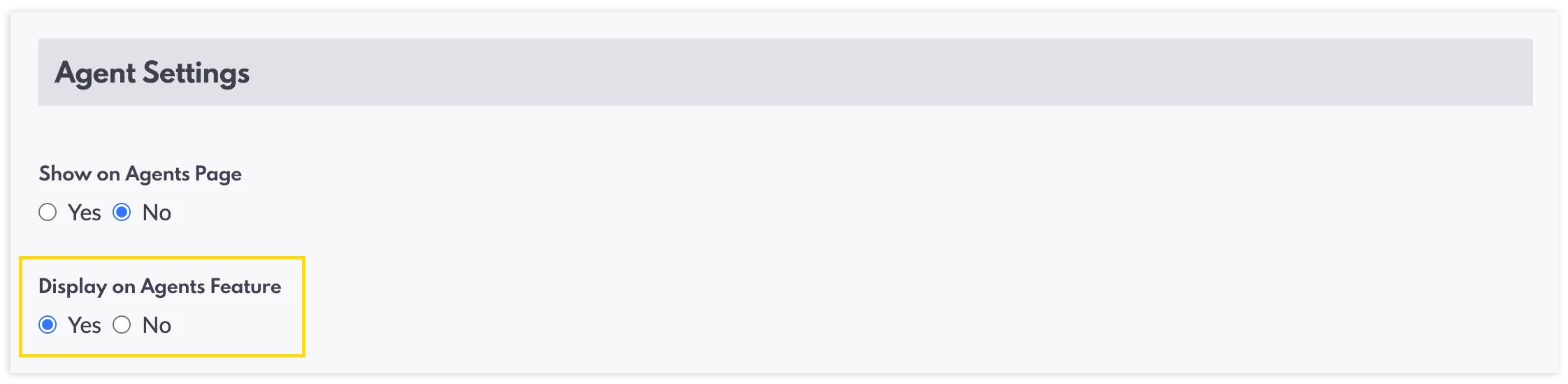
Important to note: Agents will need to have set up their MLS Agent ID to their profile, and the "Display on Agents Feature" toggled on, for the system to recognize their listings. To enable the Display on Agents Feature, go to "Preferences", scroll down to the "Agent Settings", and toggle "Display on Agents Feature" to "Yes".
4. Routing Rules
Next on the list are Routing Rules. Lead Routing Rules is an organizational function that helps you categorize new leads automatically. That is, you don’t have to manually allocate each lead that comes through the backend. Instead, leads are already sorted into a pool or assigned to an agent. Additionally, criteria can be defined by you, which means that leads can be sorted based on certain metrics, such as location, property details, form submissions, and more.
Scroll down to the next section of this blog to view the step-by-step instructions of how to set up a Routing Rule, or watch the instructional video below.
Learn how to configure Lead Routing rules in the REW CRM. Routing rules automatically categorizes and assigns new leads to agents, eliminating the need to manually allocate each lead in the backend. Hi, everyone. Lead routing is an automation feature in the REW CRM that automatically categorizes and assigns new leads, eliminating the need to manually allocate each lead in the back end. In this video, I'll walk you through exactly where to find it and how to set up automated lead routing rules. So let's get into it. Log in to the REW CRM. Click on the hamburger menu on the top right of the screen and navigate to the settings page. You'll wanna make sure you're on the leads section of the page. From here, you'll see three tabs. Navigate to the routing tab. On this page, you will be able to view all of your existing lead routing rules and whether they are currently enabled. To create a new rule, click on the blue plus new routing rule button on the top right corner. This will open up a new window. Give your lead routing rule a title. For this example, I want my rule to route leads interested in residential homes over a million dollars in Apple Valley. Next, you have the option to assign leads based on the specific forms submitted on your website, and you can assign more than one form to a rule. I don't require this part for my rule, so I'll leave this blank. Now let's move on to MLS criteria. This is where you can filter out your rule using MLS fields. If you click the drop down, you can choose between city, subdivision, zip code, property type, and price range. I'm gonna need three fields for my rule. First is city. Hit the add button to confirm the selection. Expand and edit your field by clicking on this gear icon. And to delete any fields, just click on the trash icon. Now I'll need to find Apple Valley. Let's go ahead and select the drop down again to add another field. This time property type. I mentioned I wanted residential, so I'll check this box. And let's add one more, which will be price range. Within the minimum drop down, I'm gonna select a million. Great. My rule is now filtered based on my three MLS criteria. Now let's jump into assignment. This is where you can set who or where these leads are being assigned to. If agents is selected, you can choose multiple office or specific agents to this rule. If you choose pools, you are able to automate these leads to existing pools you have in your system. Keep in mind, pools have to be created first before they can be selected in the lead routing section. If you want to know how to set up pools in the CRM, jump onto the REW Academy page and search for our lead pools instructional video. I'm going to assign two agents for my rule. Finally, you can choose to either enable or disable this rule. Selecting no underneath enabled means that this lead routing rule is not active and this will not apply to incoming leads. Once you're all happy with your rule settings, save your changes. Your new lead routing rule will now appear on the main routing page. It's that simple. If you have any questions or want to learn more about this feature, please reach out to us at rew dot com or join the conversation on our forums page. Thanks for watching. 
How To Create A Lead Routing Rule
5. Lead Auto-Assignment
The next tier in the REW CRM routing flow is Lead Auto-Assignment. This feature distributes new leads using a standard round-robin system, ensuring leads are assigned evenly across agents who are opted into this feature. This helps maintain fair lead distribution while keeping response times fast.
To toggle this setting on, enter the "Settings" page. Within the "Leads Manager Settings" you will see the setting for "Lead Auto-Assignment". Once "On" is selected and saved, the system will show you how many agents are opted into the auto-assignment.

Permissions:
Admins will need to set permissions for each Agent to allow them access to Lead Auto-Assignment. To do this, navigate the "Company" page and select an Agent. Within the "Agent Summary" dropdown, click on "Edit Mode". Under the "Lead Settings" section, click on "Yes" to both "Auto-Assign/Rotate Opt-In" and "Auto-Assign".

Agents are also able to opt-out of the auto-assignment on their end if they wish to. They can do this by accessing their "Preferences". Within the "Lead Settings" section, they can opt-out by selecting "No" on "Auto-Assign/Rotate Opt-In".

Watch the instructional video below to see how to enable the Lead Auto-Assignment settings.
Learn how to enable and opt-in your Agents to the Lead Auto-Assignment, Lead Auto-Rotation and Lender Auto-Assignment settings in the REW CRM. 
How to Enable Your Lead Auto-Assignment & Auto-Rotation Settings
6. Shark Tank
If tiers 1–5 in the routing flow do not apply, leads will move to Shark Tank as the next distribution option (if enabled). Shark Tank places new leads into a shared space where agents can claim them. Rather than being automatically assigned, these leads are available on a first-come, first-served basis, allowing agents to actively pick up opportunities while encouraging faster response times.
To enable Shark Tank, navigate to the "Settings" page. Within the "Lead Manager Settings" you will see "Shark Tank Lead Distribution". Toggle this "On" to enable, and once saved, new un-assigned leads will be entered into the Shark Tank.

Admins will need to set permissions to an Agent to allow them access to Shark Tank leads. To do this, head over to the "Company" page and select an Agent. Within the "Agent Summary" dropdown, click on "Permissions". Expand the "Leads Privileges" section, and check the box next to "Access Shark Tank Leads".

Once an Agent has been granted permissions, they will be able to claim Shark Tank leads. To do this, open the "Leads" homepage. At the bottom-left of the screen, click on "My Setup" and navigate to "Shark Tank", which is found below the "Tools" section. Here, you will find a list of all un-assigned leads. Click on the green "Claim" button to the right of the lead.

Watch the instructional video below to see how to enable Shark Tank and how to claim Shark Tank leads.
Enable an auto-rotation for unassigned leads to your agents. With Shark Tank activated, your agents can claim leads on a first come, first serve basis. Hi, everyone. In this video tutorial, I will be walking you through REW CRM's auto rotation feature, Shark Tank. Shark Tank was built for competitive teams who want to reward their agents who are on the ball. Through Shark Tank, your agents will accept leads on a first come, first serve basis. The setup is super simple. Let me show you how. Log in to the REW CRM, and within the hamburger menu, navigate to the settings page. Within the lead manager settings, scroll down to where it says Shark Tank lead distribution. Toggle it on to enable this feature. Save your settings. Once this is on, new unassigned leads will be entered into the Shark Tank. Agents who are granted permissions to the Shark Tank will receive notifications when a new lead is entered and will be able to accept these leads on a first come first serve basis. That's about it for the settings. Now let me show you how an agent can claim a Shark Tank lead. Navigate to the CRM homepage. Click on my setup on the bottom left of the screen. And within the modal, you will now see Shark Tank listed under tools. Click on this. All unassigned leads will be listed on this page. To claim a lead, simply click on the green claim button to the right side of a lead. It's that easy. Does your team thrive on competition? If so, give Shark Tank a try. If you have any questions or want to know more about this feature, please reach out to us at REW dot com or join the conversation on our forums page. Thanks for watching. 
How To Enable Shark Tank
7. Default to Super Admin
If none of the routing tiers above apply, the lead will default to the Super Admin. This does not mean the Super Admin has claimed the lead—rather, it acts as a temporary fallback to ensure the lead remains assigned within the system until it can be properly routed to an agent.
Lead Routing Rules: How It Works
Routing Rules cuts back on some of the more time-consuming aspects of your business, so that you have more time to connect with potential clients and manage other important things. Let's run through the steps of setting up a lead routing rule.
1. Log into the CRM, click on the hamburger menu on the top-right of the screen, and navigate to the "Settings" page.

2. Click on "Leads" on the left-hand side. From here, there will be three tabs: Leads, Routing, and Dialer. Select the "Routing" tab. Here you are able to view all of your existing Lead Routing rules and whether they are currently enabled.
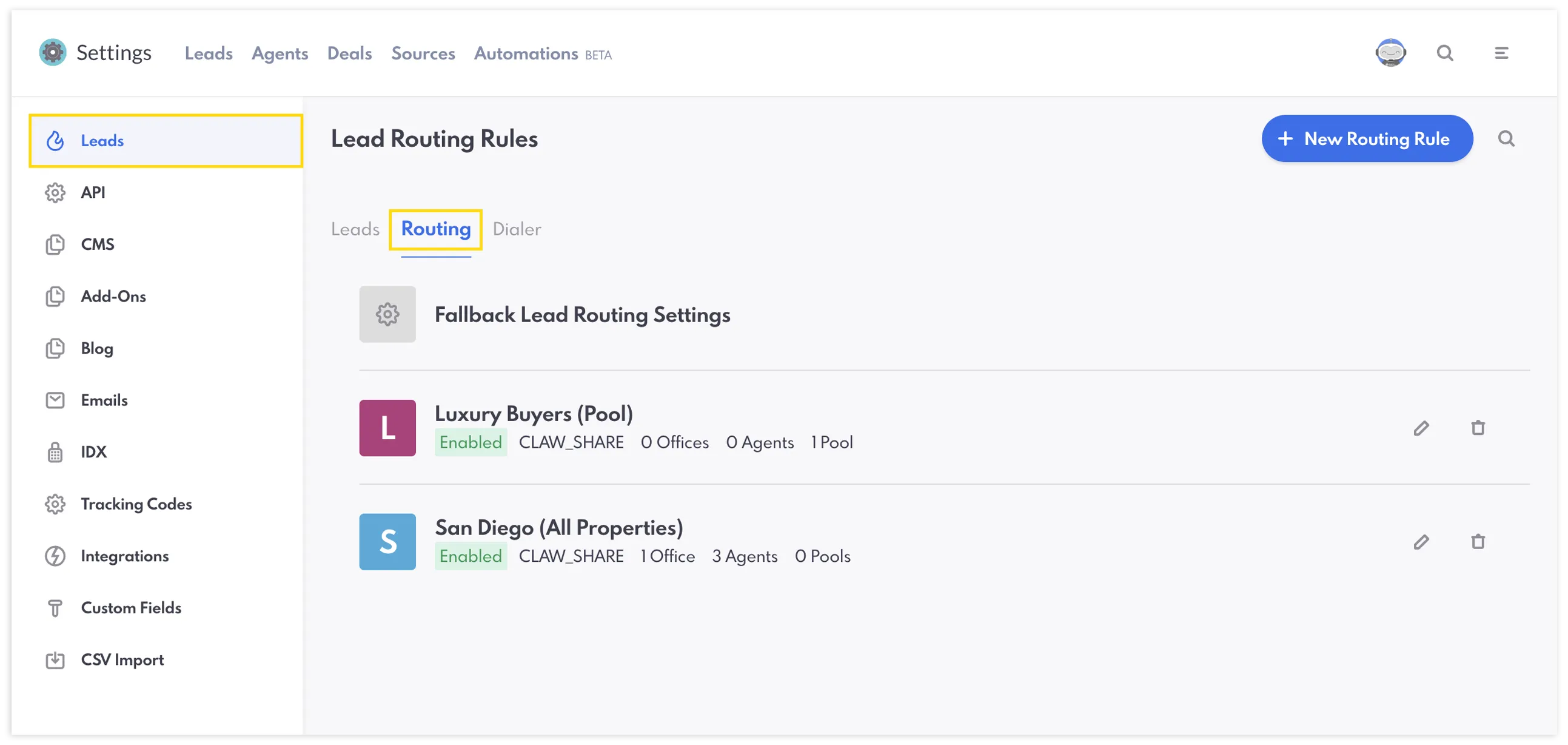
3. To create a new rule, select the blue “+ New Routing Rule” button on the top right corner. This will open up a new window.

4. From here, you will have to name your Lead Routing rule.

Once you have done this, you can select different conditions for your rules. The "Auto Assign on Form Submission" section allows you to implement automatic routing based on the form. For example, the Contact form or the Listing Inquire form. Alternatively, you can also filter from the following "MLS Criteria": city, subdivision, zip code, property type, and price range. One of these conditions must be selected and met.

5. Select a form to auto assign, and/or add your MLS Criteria to filter. You may assign multiple forms and MLS Criteria. If choosing MLS Criteria, select your field from the dropdown, then click "Add". To manage that field, click on the "settings icon" and select your preferences.

6. Once you have selected the requirements for the rule, you can then select whether to assign this to "Agents" or a "Pool". Multiple Agents and Offices can be selected, while Pools sends the Lead to a shared space where Agents get the opportunity to choose their own Leads.
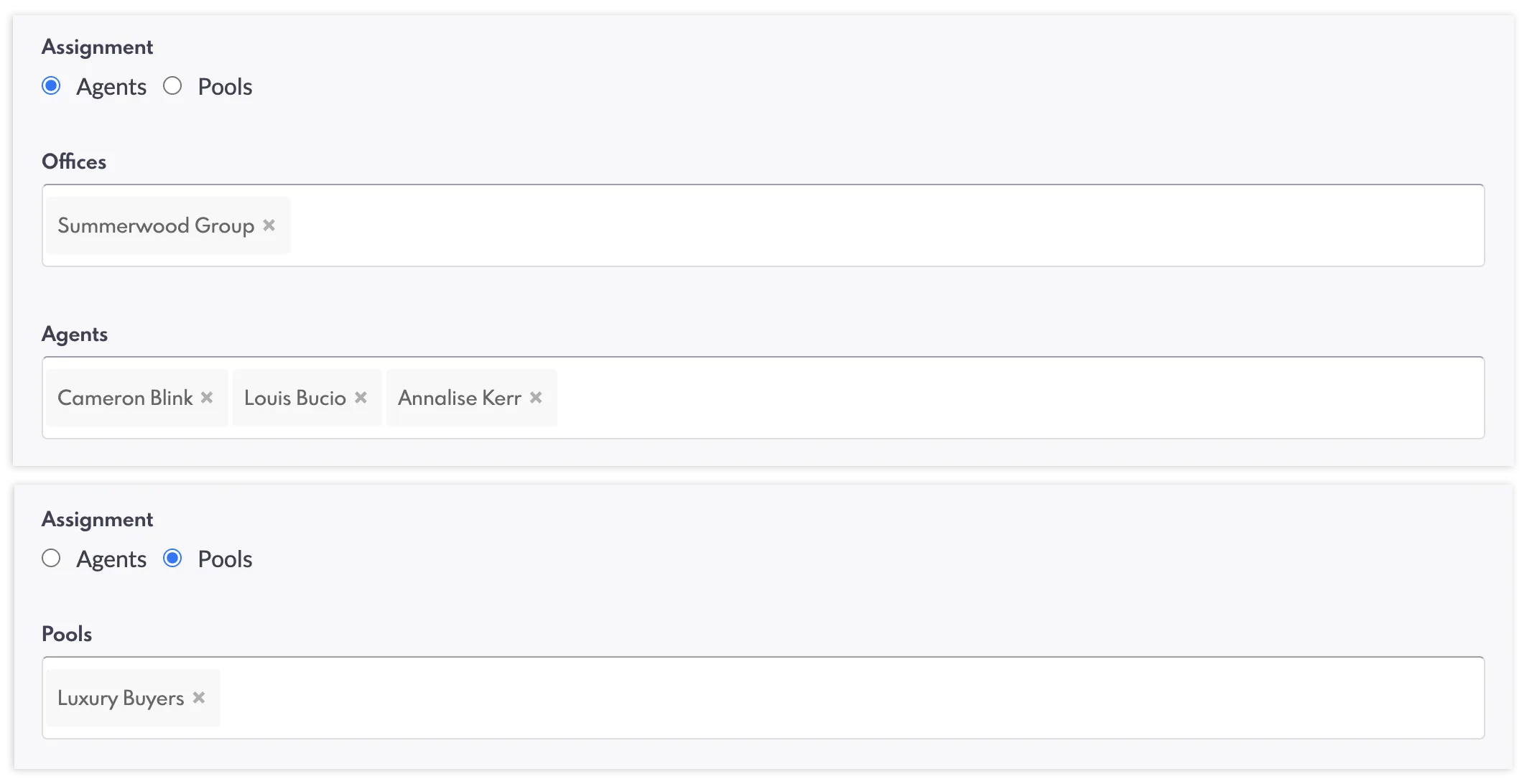
Important to note: Pools have to be created first before they can be selected in the Lead Routing section. For detailed instructions of how to set up Lead Pools, visit this blog post.
7. You also have the option of having this lead rule enabled or disabled. Selecting “No” underneath “Enabled” means that this Lead Routing rule is not active and this will not apply to incoming leads.

8. Once these sections have been filled out, you can click the "Save" button at the bottom of the page.

Additional Benefits of Lead Routing
By automating lead distribution, Lead Routing reduces administrative work for site admins while helping agents receive the leads that are most relevant to them, whether that’s through their own listings, personalized URLs, subdomains, or predefined routing rules. The result is a more organized workflow, faster response times, and fewer opportunities for leads to go unnoticed.
Overall, Lead Routing creates a more reliable and scalable way to manage lead flow, giving teams greater control over how leads are distributed while allowing agents to focus more on connecting with potential clients.
Lead Routing FAQ
What is Lead Routing?
Lead Routing in REW CRM is an automation feature that assigns incoming leads to agents based on a defined priority system. Instead of manually distributing leads, the system evaluates routing conditions, such as agent URLs, subdomains, listings, and routing rules, to determine the most appropriate agent to receive the lead.
How does Lead Routing determine who receives a lead?
Lead Routing follows a structured hierarchy that evaluates several conditions in order of priority. These include Agent URL parameters, subdomain ownership, My Listing My Lead settings, custom routing rules, and round-robin auto-assignment. If none of these conditions apply, leads can be placed in Shark Tank or temporarily assigned to the Super Admin.
What are Lead Routing Rules in REW CRM?
Lead Routing Rules allow admins to automatically categorize and assign new leads based on specific criteria. These criteria can include form submissions, location, property type, price range, and other MLS data. Once configured, the CRM automatically routes incoming leads according to these conditions.
What is Shark Tank lead distribution?
Shark Tank is a lead distribution option where unassigned leads are placed into a shared pool that agents can claim. Instead of being automatically assigned, leads are available on a first-come, first-served basis, encouraging faster response times and giving agents the opportunity to actively claim new opportunities.
What are the benefits of using Lead Routing in REW CRM?
Lead Routing helps teams save time by automating the process of assigning and organizing new leads. It ensures leads are distributed consistently, improves response times, reduces manual work for admins, and helps agents receive leads that are most relevant to them.