Our Fall release is getting closer, and we’re bringing you another sneak peek of one of our upcoming features! Previously, we’ve covered the new updates to APIs, which allow you to access larger pools of data and now sort between Leads and Deals APIs, as well as Portfolios, which allow users to save and organize their favourite properties into lists.
The next feature is designed to give you greater control over the design and functionality of your website forms. The Form Builder is an upcoming tool that you can use to capture and track precise data specific to your business goals.
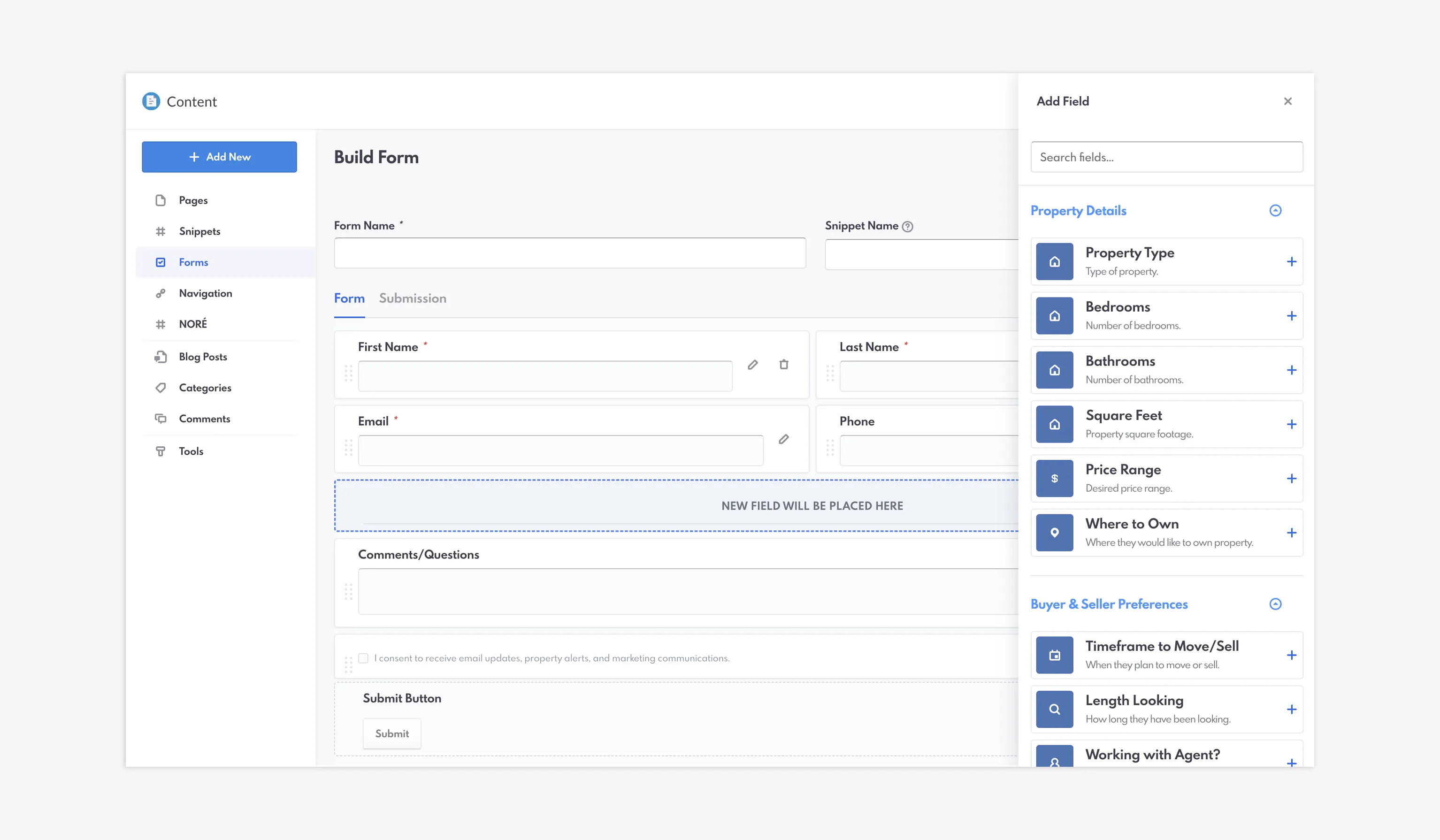
The new Form Builder in the REW CRM
It’s easy and simple to use, and is designed to work all across all of your website's pages. Let’s jump into this exciting new feature!
Table of Contents
Form Builder: A Quick Introduction
The new Form Builder feature is another add-on to the backend on Real Estate Webmasters sites. It is found within the Content section of the backend, underneath the Forms tab. Like its name suggests, this tool makes it possible for you to create your own custom forms.
What exactly constitutes a form? It’s any #snippet# that requires input for a lead, such as the Contact Form (#form-cma#), the Comparative Market Analysis Form (#form-cma#), or Blog Subscription Form (#form-blog-subscription#)—all of which are basic, standard forms that are automatically installed on your site.
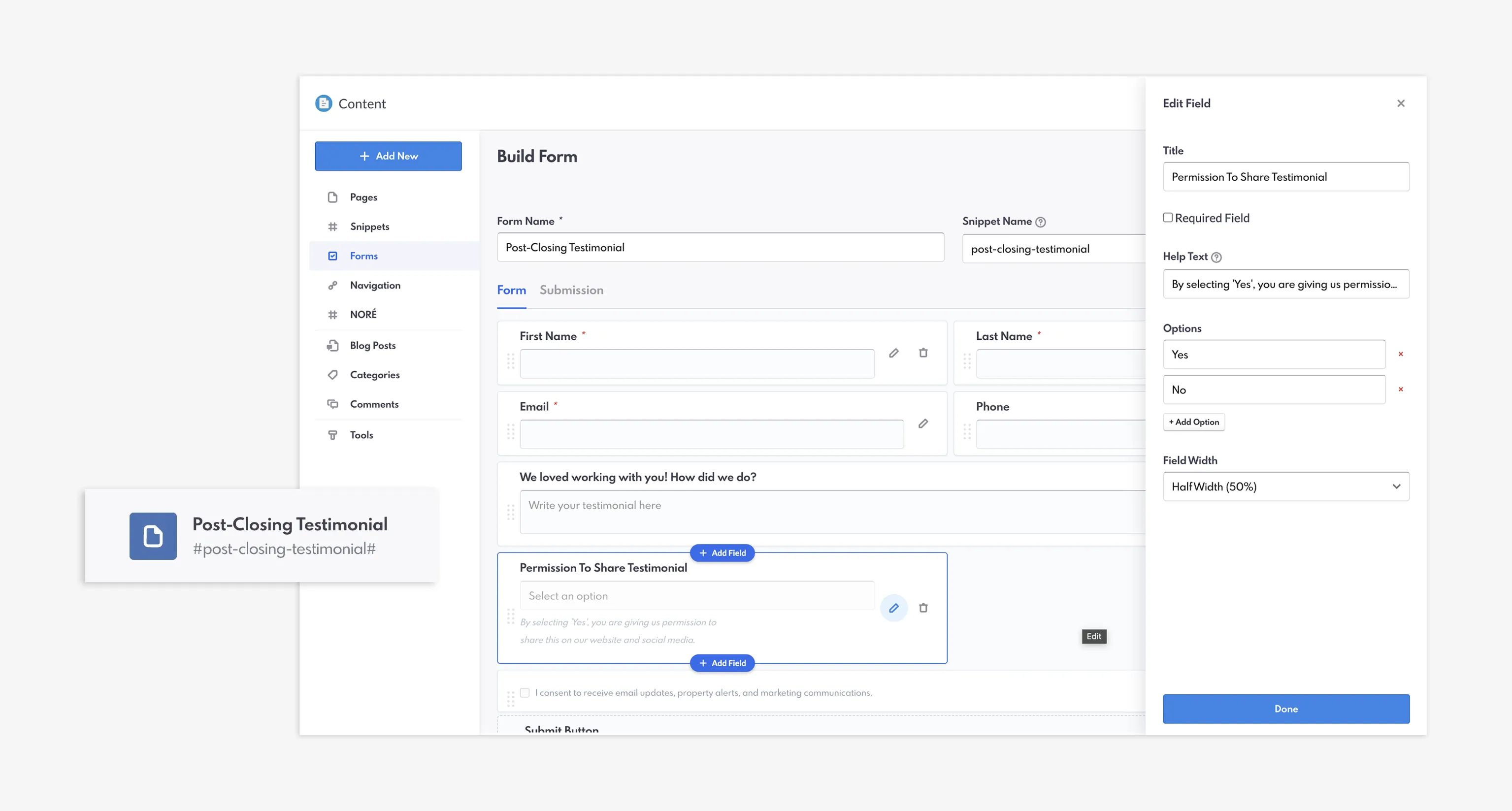
An example of a post-closing testimonial form in the Form Builder
As an important note: the code for your regular forms are not impacted by any new forms that you create within the Form Builder.
A Glance At The Form Builder Capabilities
As mentioned above, the Form Builder is accessible through the new Forms tab, with Snippets located right above it and Navigation located right below. You are able to view all of your custom Forms in this section, as well as create a new form by clicking the “+New Form” button in the top right corner.
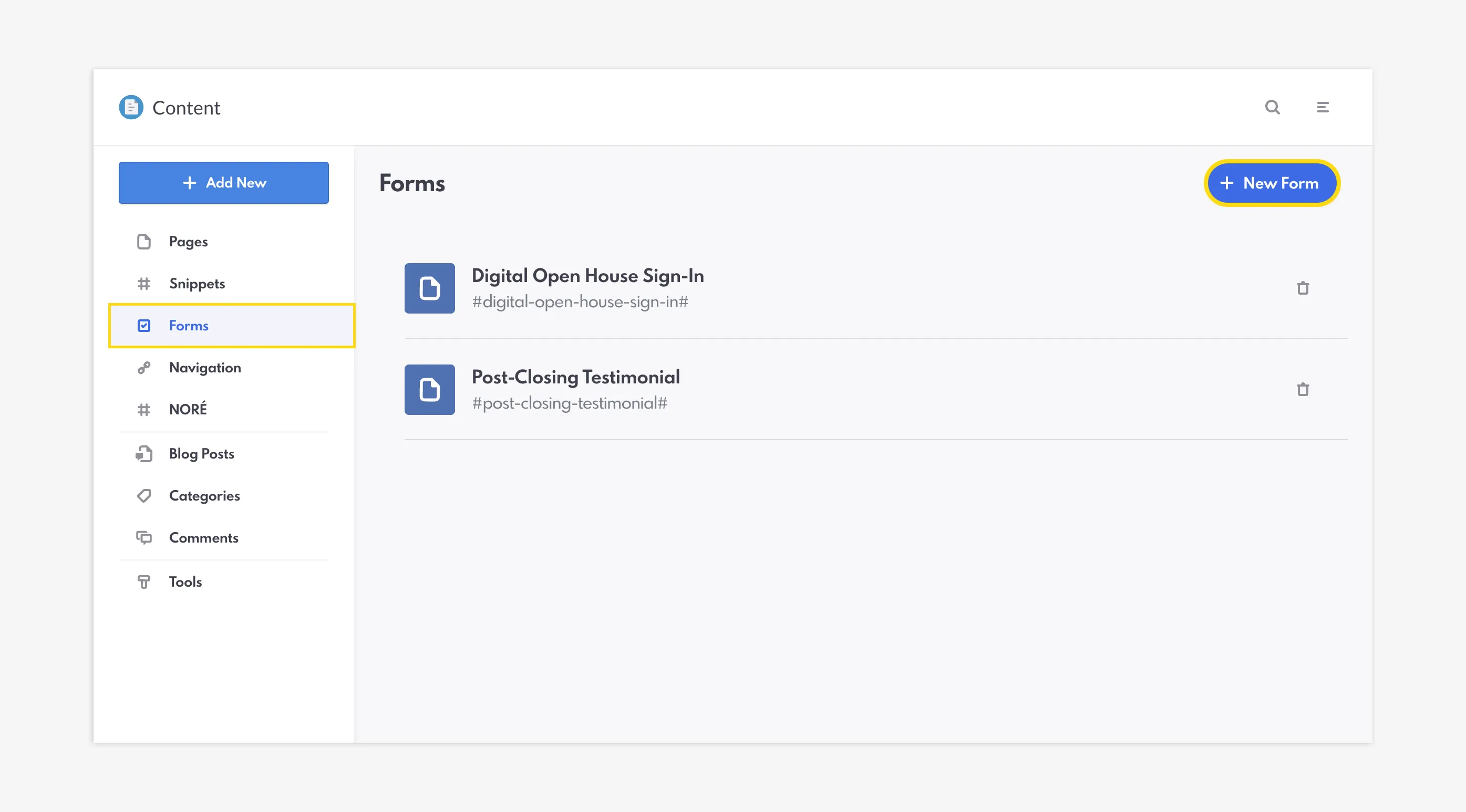
The new Forms page within the Content Page
Here, you can name your snippet and build the “blocks” that make up your form. These include basic information, such as First Name, Last Name, and Phone Number, as well as a wide range of additional data and generic fields.
- Standard Inputs (Single Line Test, Website URL, Date Picker, Time Picker, etc.)
- Property Details (Property Type, Square Feet, etc.)
- Buyer & Seller Preferences (Timeframe to Move/Sell, Working with Agent?, etc.)
- Financial & Mortgage (Loan Amount, Monthly Payments, etc.)
- Layout & Formatting (Form layout tools—Heading, Divider, etc.)
Click to add new fields, drag to move them around, delete unwanted fields, and edit fields to insert additional information. When you’re done, click Save and you can add the form snippet to a page on your website.
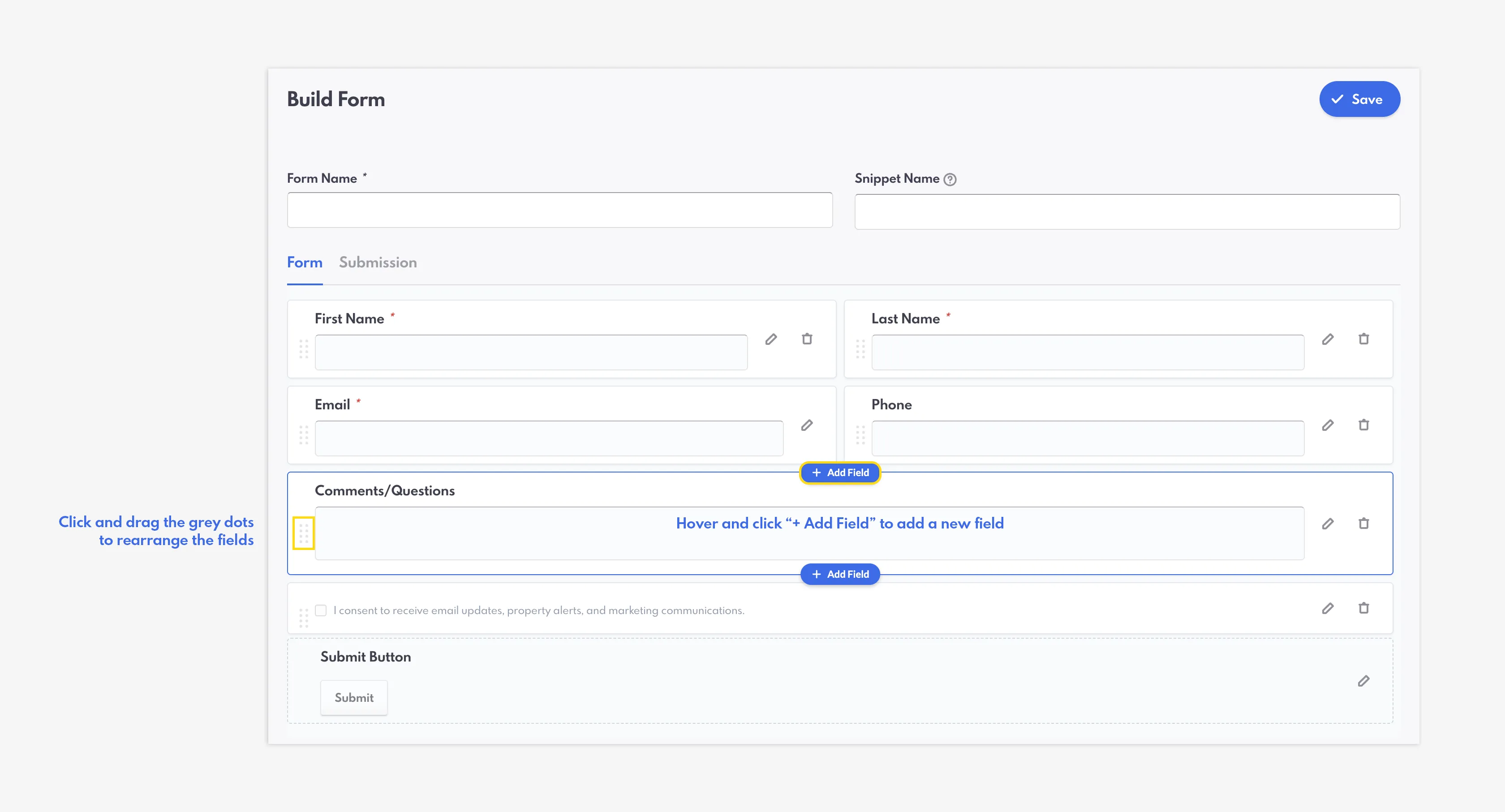
Customize and rearrange your form layout
The Submission tab within the Form Builder shows you what actions happen when a user submits a form. For example, an email might be sent as a thank you message, PPC conversion tracking, Automations, and Lead Preferences.
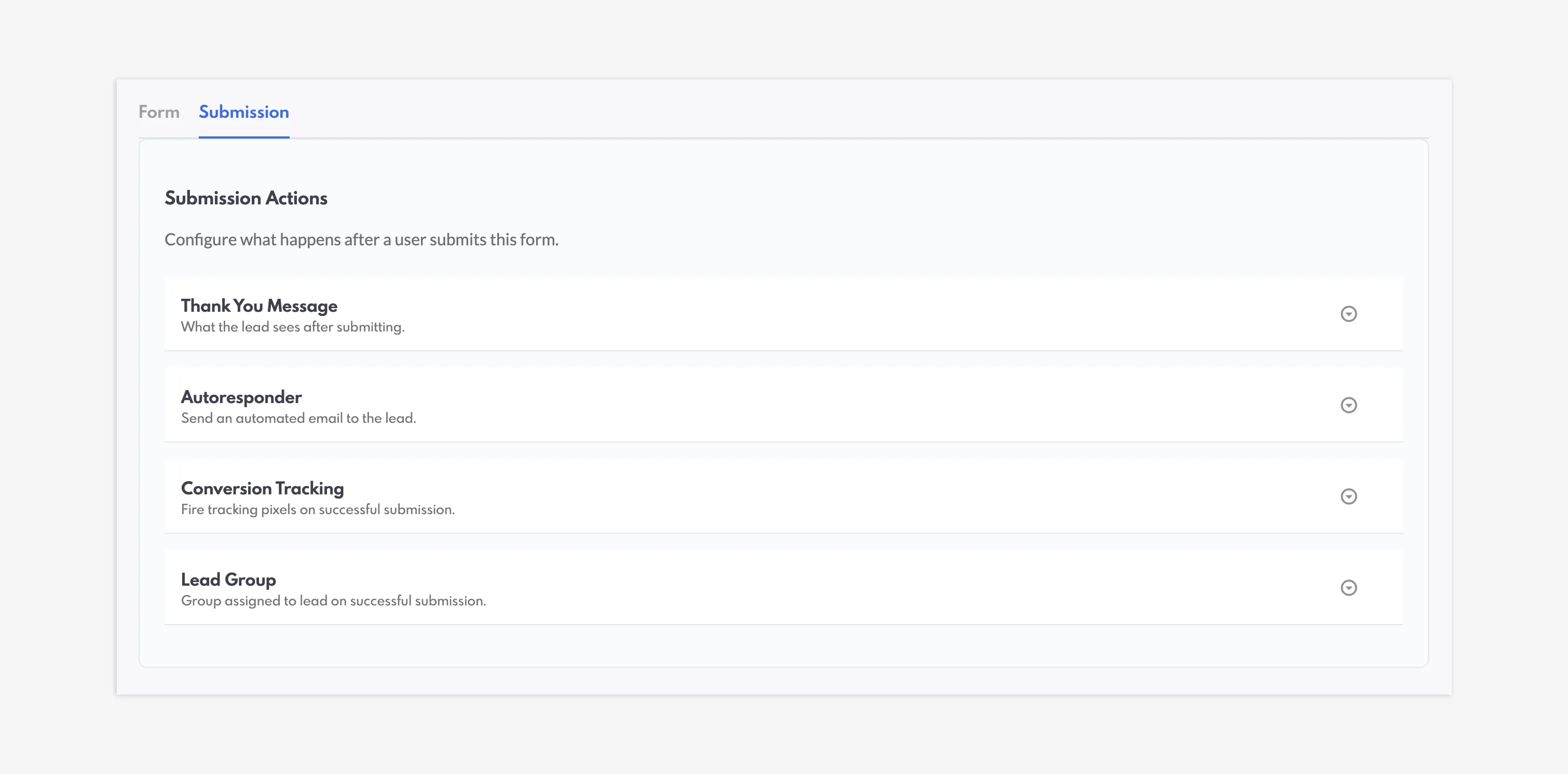
Submission Actions for a form
A Few Things To Know
Information inputted within any of the generic fields is tied to a Lead’s profile and is viewable on the Inquiries window, within the Lead Details page. For example, if you added the Paragraph Text field to a form asking for feedback, then whatever the user has inputted can be seen inside the Inquiries section, next to the name of the field.
If you have any custom fields set, they will appear as field options under the "Contact Information" drop-down inside of Forms. These will be created the same way as your custom fields. For example, if your custom field type is created as a "Date", the field on your form will have an date input.
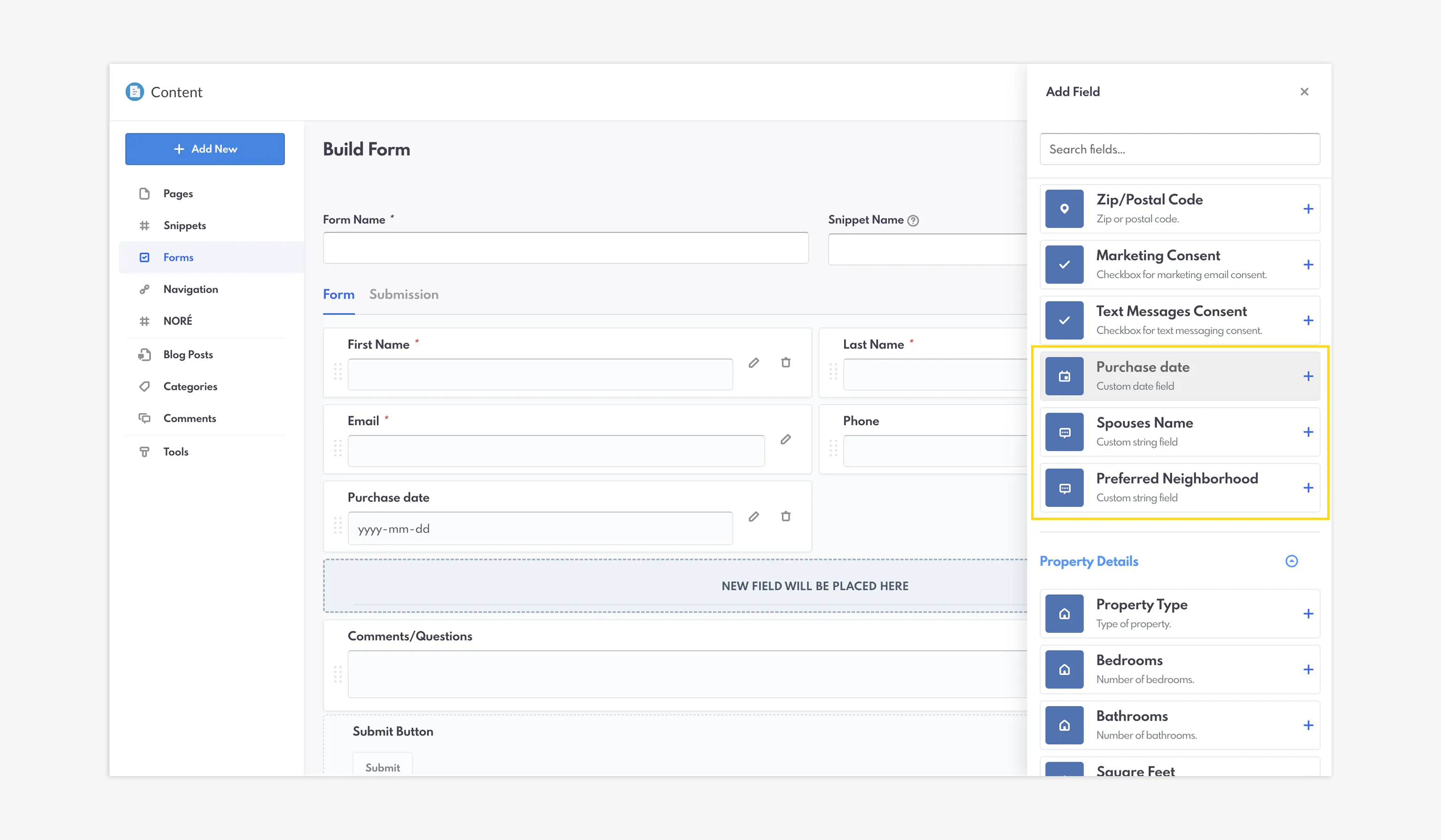
Any custom fields created in your CRM can be used on your form
Additional functions include the ability to change the button names, viewing the fields in half or full page formats, and making some fields required within your custom form.
Closing Summary
The upcoming Form Builder tool gives you complete control over your website forms, making it easier than ever for you to capture custom lead data tailored directly to your business goals. We look forward to rolling out this powerful new feature with our Fall release—stay tuned for more updates as launch day approaches!
Coming Soon: Capture Custom Lead Data By Building Your Own Forms FAQs
Are users who fill out the form automatically opted in to the Marketing Consent field?
Marketing Consent and Text Message Consent are two optional fields in the Form Builder. If no action is taken on your end, then users are automatically opted in. To opt out, you must uncheck the boxes within the Form Builder.
Can I put multiple forms on one page?
You have the ability to add multiple forms on one page, however it might confuse your users!
How many fields can I add at a time to a custom form?
The only limit is the number of available fields—although adding all of them to one form snippet is not recommended!
Will my existing forms be affected by the custom forms I create?
No, your regular, standard forms automatically installed on your site are not impacted by any new forms you create within the Form Builder.
Can every user access the Form Builder?
No. Only the Super Admin has the ability to create new forms. However, all users can use the snippets on their pages.