Keep In Touch With Leads In Our Newest Release For Automations

For client-facing and client-focused businesses, keeping track of potential leads is one of the most important aspects of the job. And those in the real estate industry in particular understand that there’s limited time in each work day to get things done. It can be a challenge to plan around a schedule that can fluctuate, while keeping track of all incoming leads and messages.
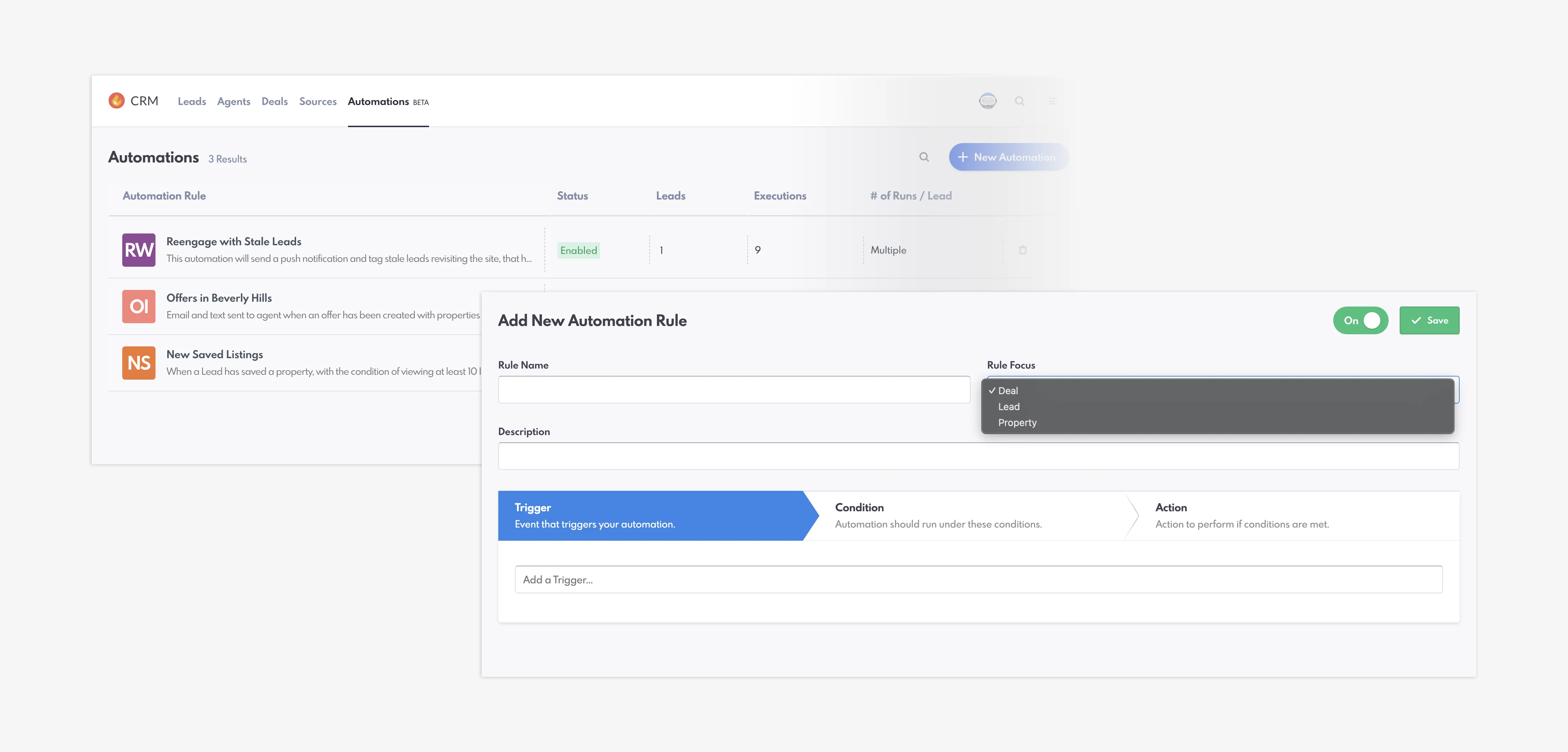
REW CRM's Automations Phase 3
That’s why we’re helping you refine your processes through the upcoming Automations feature for our Summer release. Phase 3 will introduce more options within Triggers, Conditions, and Actions—so that you can get some of your time back and ensure you never miss a notification!
Table of Contents
Automations Phase 3 Overview
Our newest phase, Phase 3, is seeing some changes to the structure of Automations, segmenting them into three different rules: Lead, Property, and Deal. Previously, this feature was lead-based only, but these new segments allow for much more flexibility and customization, including IDX integration.
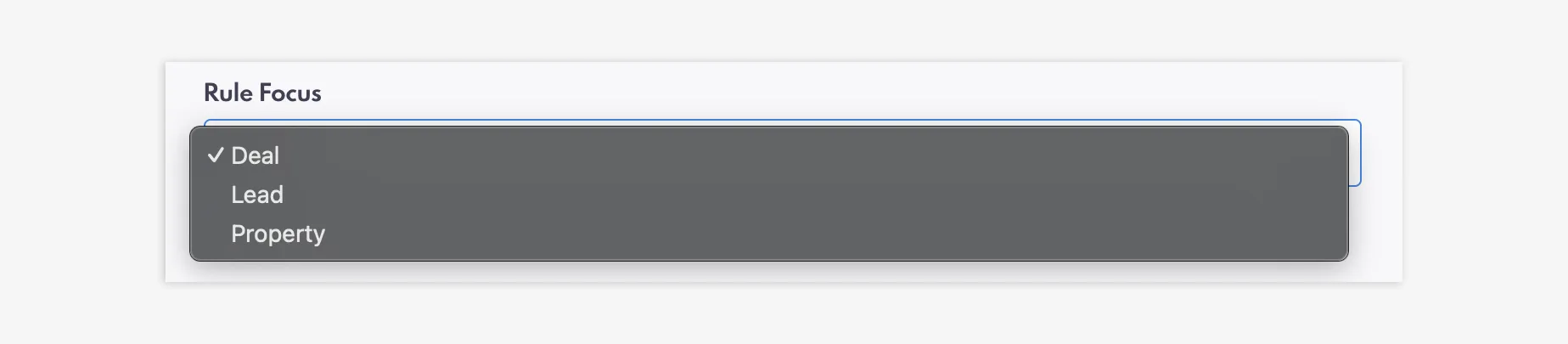
Rule Focus categories: Deal, Lead and Property
These new categories are designed to really help you narrow down leads by improving agent-client communication, and even delivering push notifications for certain functions.
It is important to note the following: if you have a rule already set up, nothing will change about that rule and any of its Triggers, Conditions, and Actions. You can modify this rule However, if you want to create a new rule, it will show you the latest update. Setting up a new Automation is easy and only takes a few minutes.
Lead Rule Focus
The default and main selection for Automations is the Lead segment. You can select which type of Automation rule you would like to create within the Rule Focus section. To create a new Lead rule, simply select “Lead” from the dropdown menu.
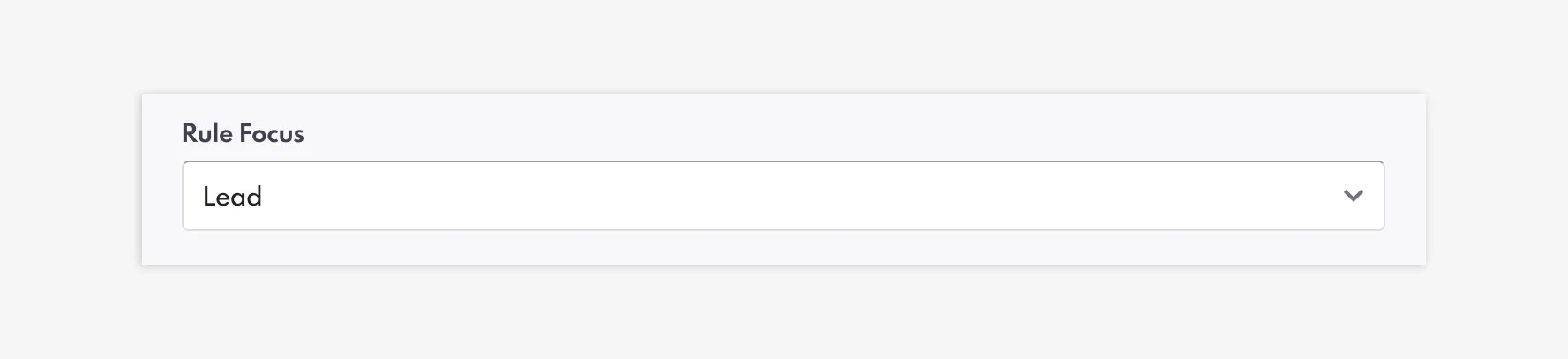
Lead Rule Focus
Then, you can select your Triggers, sorted into CRM Events (Calendar Date, Lead Deleted, Lead Rejected, etc.) and Website Events (Form Submission, Lead Saved a Search, Lead Unsubscribed, etc.).
Phase 3 sees three new Triggers:
- Email Received: If a Lead replies to an email
- Text Received: If a Lead replies to a text
- Lead Returns to Website: If an existing Lead visits the site again (can set a timeframe of days, weeks, months, or years).
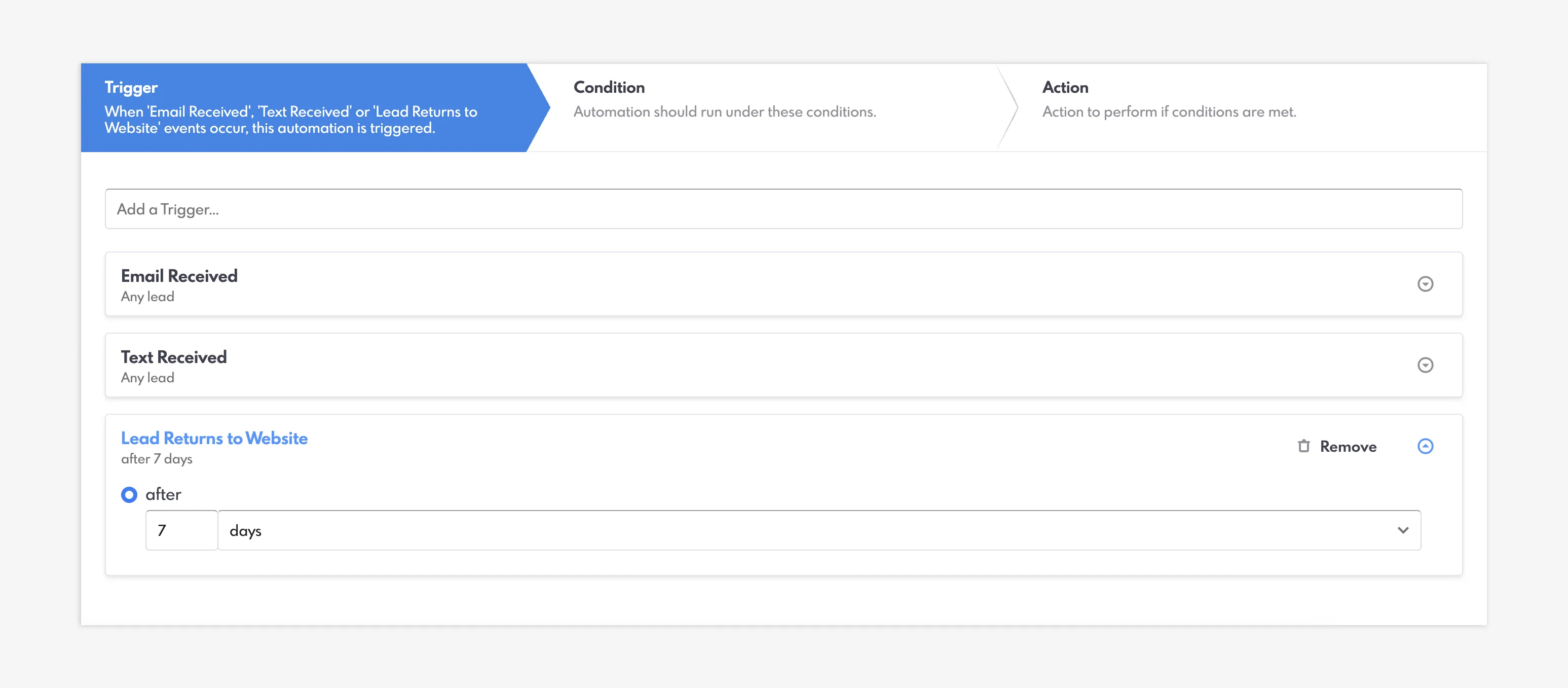
New Triggers added to Lead Rules
In addition, new Actions for Lead Rules have been added to Email and Text. You now have the ability to notify the Lead directly, alongside the current options – Assigned Agent and Custom Recipient.
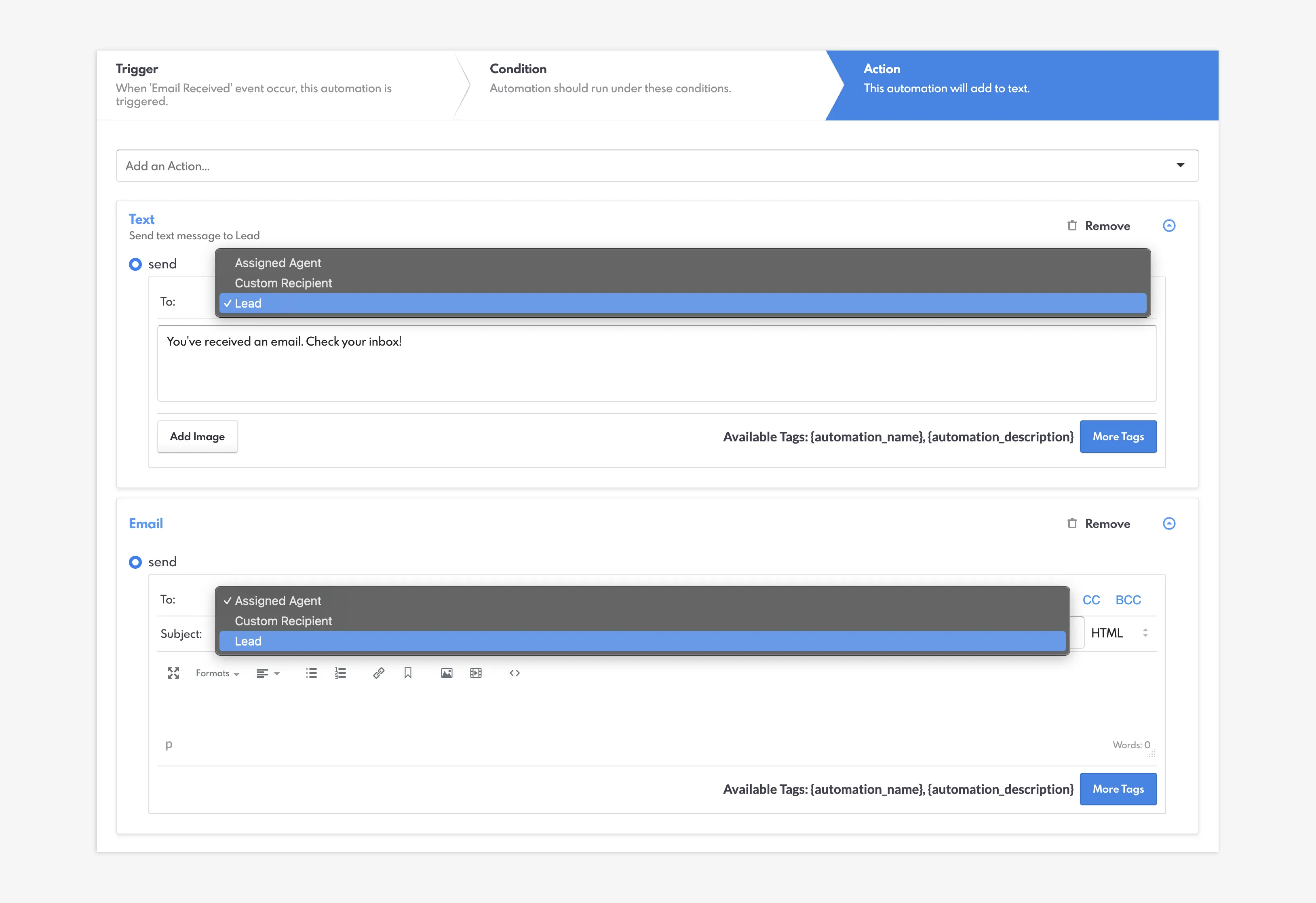
Ability to send Texts and Emails to the Lead via Actions
Property Rule Focus
Alongside the new Automations structure is the IDX integration. When selecting a Property Rule Focus within the Automations section, you can select from the following Triggers:
- Property Inquired
- Property Saved
- Property Viewed
You can also select the MLS feed within the Feed dropdown menu—which can be helpful if you work with multiple and need to specify.
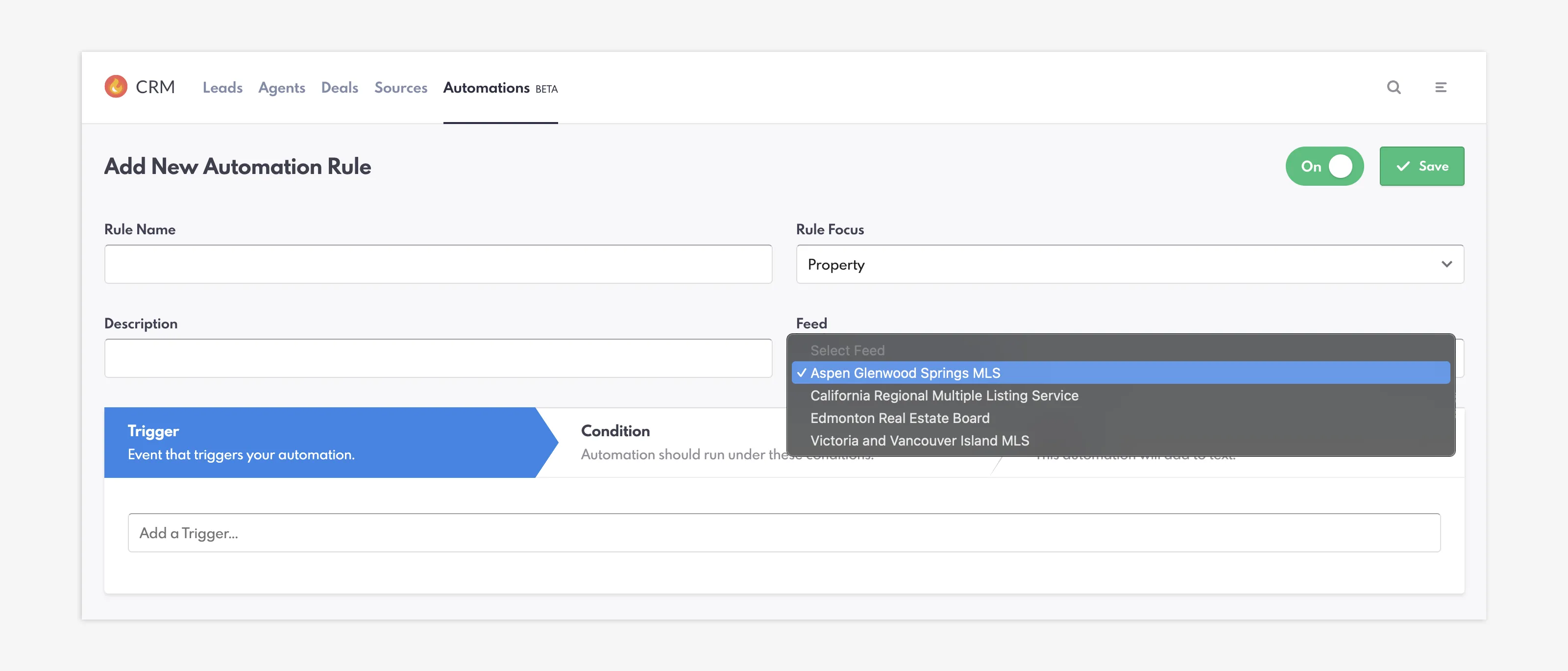
New Feed dropdown added to Property Rules
The Conditions for Property Rules are now organized into two categories: Property Filters (City, MLS Number, Price Range, Property Type, Subdivision, and Zip Code) and Lead Filters (Number of Saved Searches, Number of Favourite Listings, Number of Viewed Listings, and Number of Inquiries). These Property filters are now directly connected to the MLS making your Automations more accurate and easier to define.
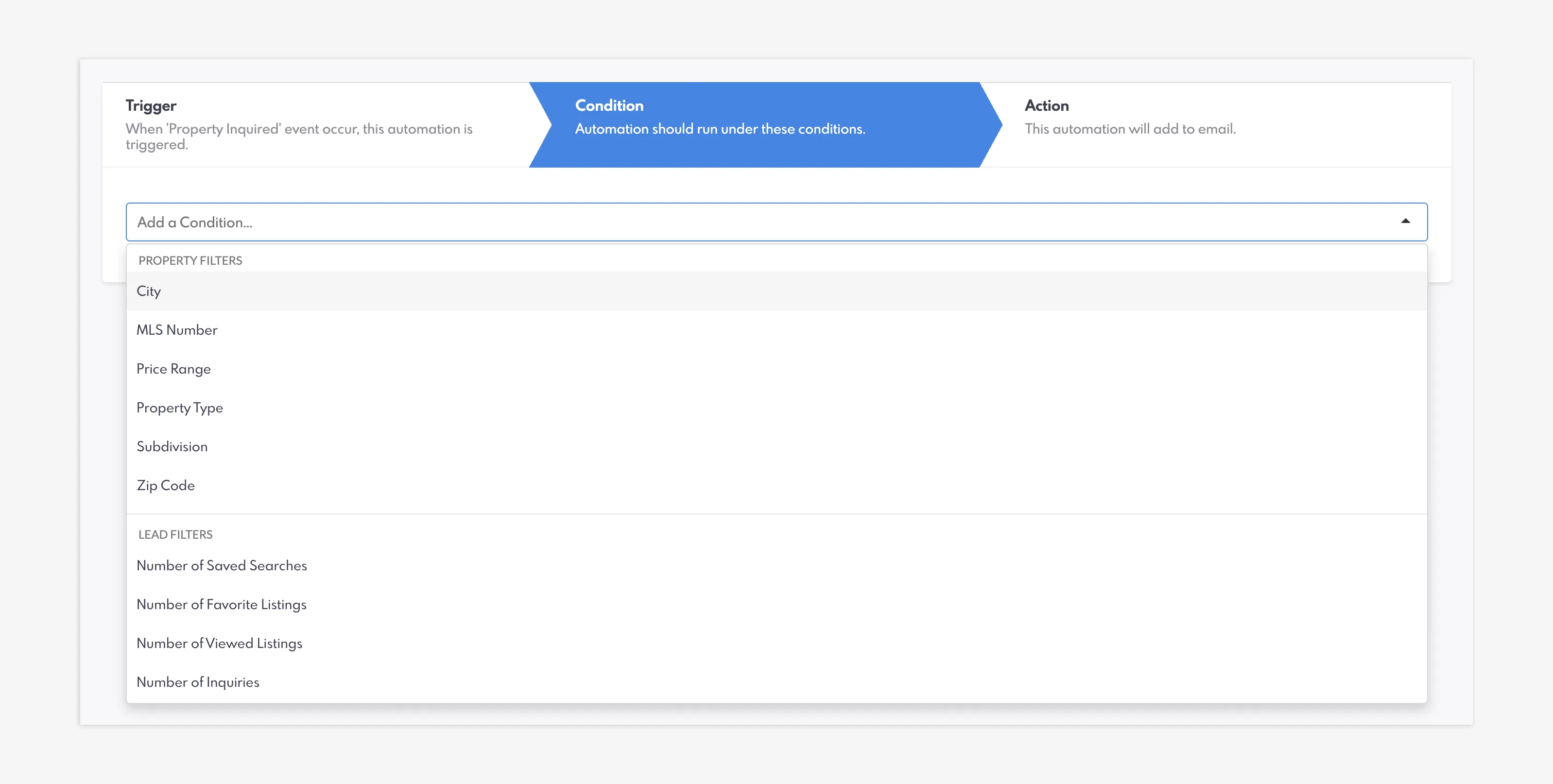
Property Rule Conditions categorized under Property Filters and Lead Filters
Similar to Lead rules, with Property rules you can set up Leads as the recipients for Emails and Texts in the Actions tab.
Deal Rule Focus
Lastly, the Deal Focus enables you to, as its name suggests, set up specific Automations for Deals.
The Triggers have not changed, and include Deal Created, Deal Outcome, Deal Stage Created, and more. The Conditions, however, happen on the Deal level. This means that you can select from twenty-three different options, such as Agent Commission, Closing Date, Listing Price, Sources, and MLS Number. Actions, as well, have not changed.
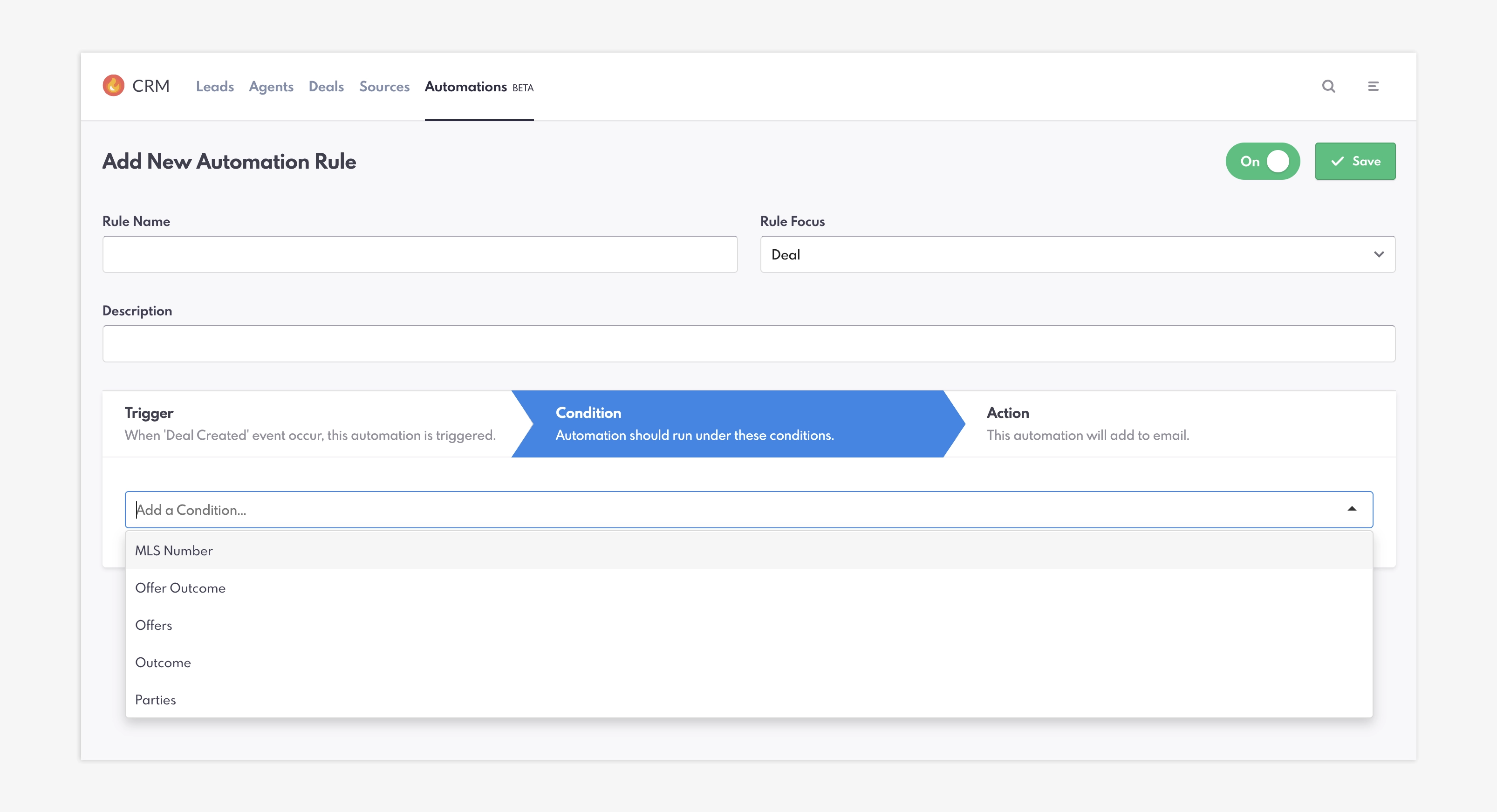
Deal Rule Conditions
Closing Summary
By setting up these new Automations, you can better keep in touch with your potential leads and know both if and how the lead has responded to you. With Phase 3 coming in the summer, these new conditions provide more flexibility, ensuring precise actions and valuable outcomes.
Keep In Touch With Leads In Our Newest Release For Automations FAQs
What do Automations do?
Automations are a CRM feature that lets you manually set up actions when certain conditions are met. For example, if a Lead completed a specific form, it could automatically place that Lead in a Group or Pool.
How many new Triggers have been added to Lead Rules?
Three new Triggers have been added: Email Received, Text Received, and Lead Returns to Website.
Can I create Automations for certain listings or property features?
Yes. With Property Rules, you can set up Automations for IDX-specific conditions, such as Property Saved, Subvision, Price Range, and more.
What do Deal Rules do?
Deal Rules pertain to the Deal section of the CRM. This type of Automation can help set up automatic actions for Agent Commission, Closing Date, Listing Price, and more.
Are my existing Automations going to continue working with Phase 3?
Yes, old Automations are not impacted by the new update. They will continue to work, but any new Automations you create will follow this new format.